The Map component shows your data on an interactive map: markers, trips, points of interest and the location of the people connected.
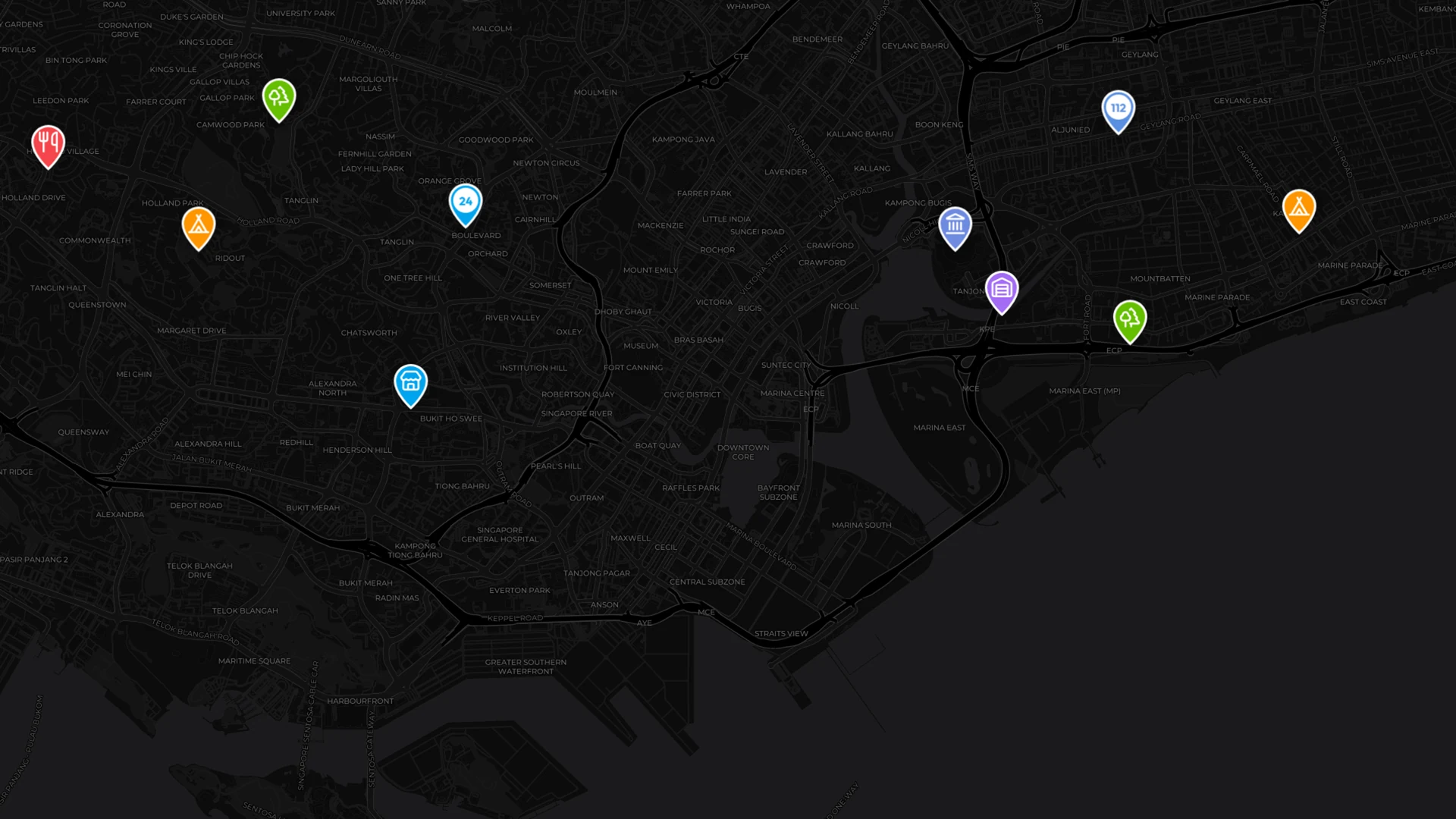
Map controls
Search finds your markers, your trips and points of interest (restaurants, stations, pharmacies…).
Add a marker
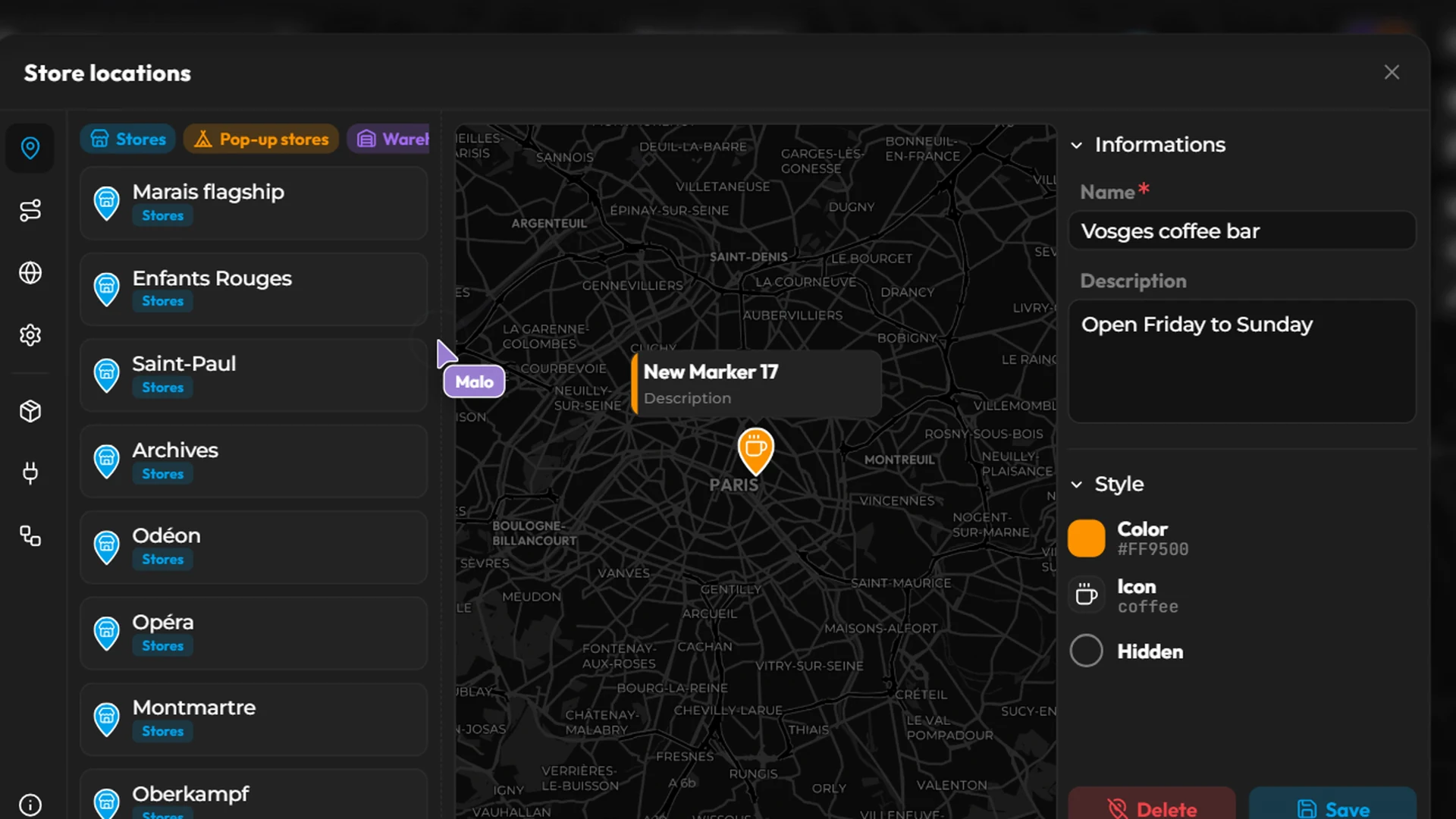
Click Add a marker.
Click the spot you want on the map. A “New marker” appears.
Open Configuration › Markers to customize it:
Information: Name, Description, Hidden;
Style: Color and Icon.
Dozens of addresses at once
Give a list of addresses to Kubme AI: “Put these 30 stores on my map, in red for those closed on Sundays.” It finds each address's coordinates and drops the markers.
Draw a trip
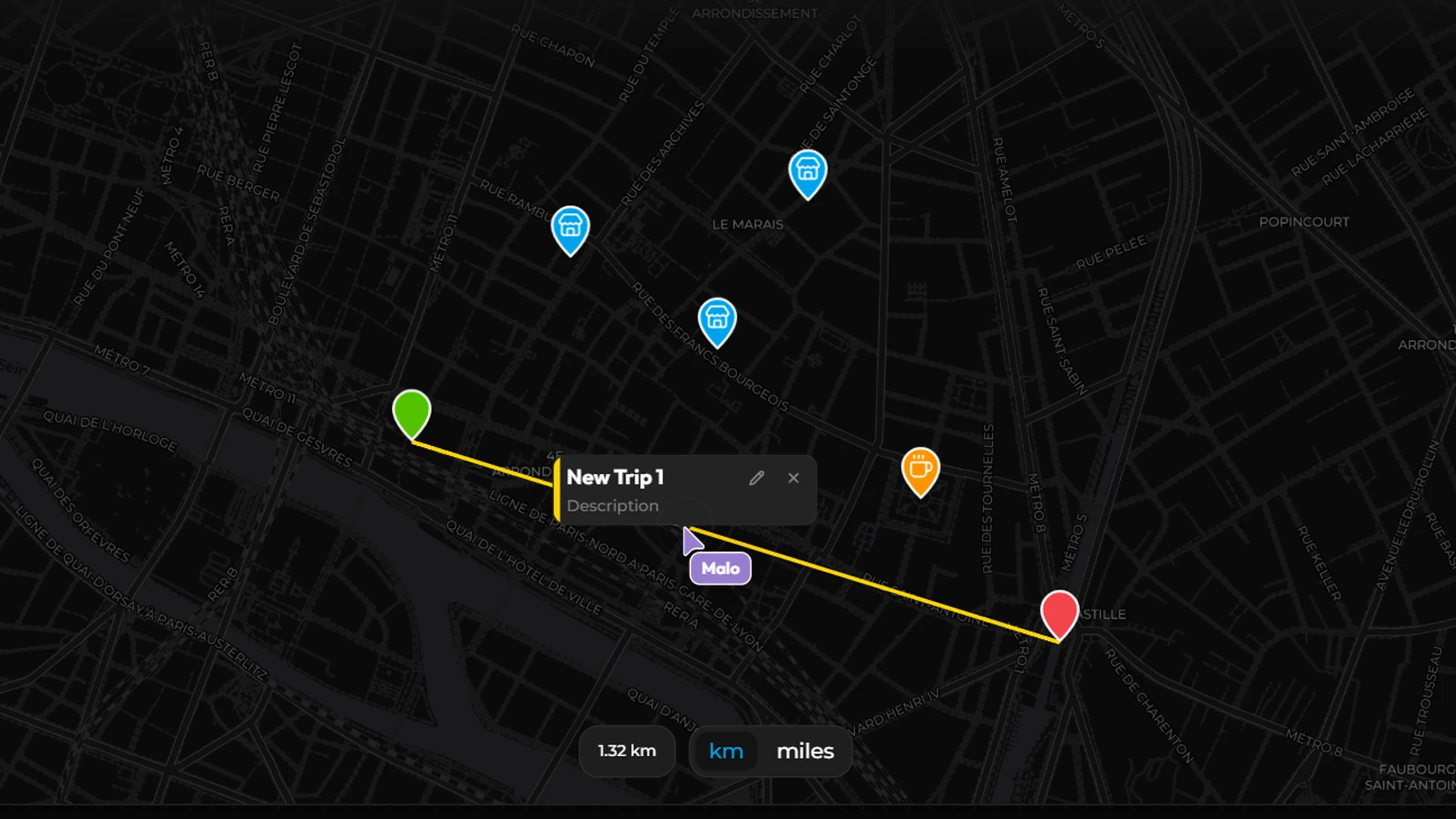
Click Add a trip.
Click the map to add each stop.
Finish with a double-click or
Enter.While drawing: Backspace or Delete removes the last point, Esc cancels.
In Configuration › Trips, set the Trip Name, Start, End, Color and Route mode:
Linear: straight lines between stops;
Routed: the trip follows the roads;
Flight: arcs, like a plane trip.
Points of interest
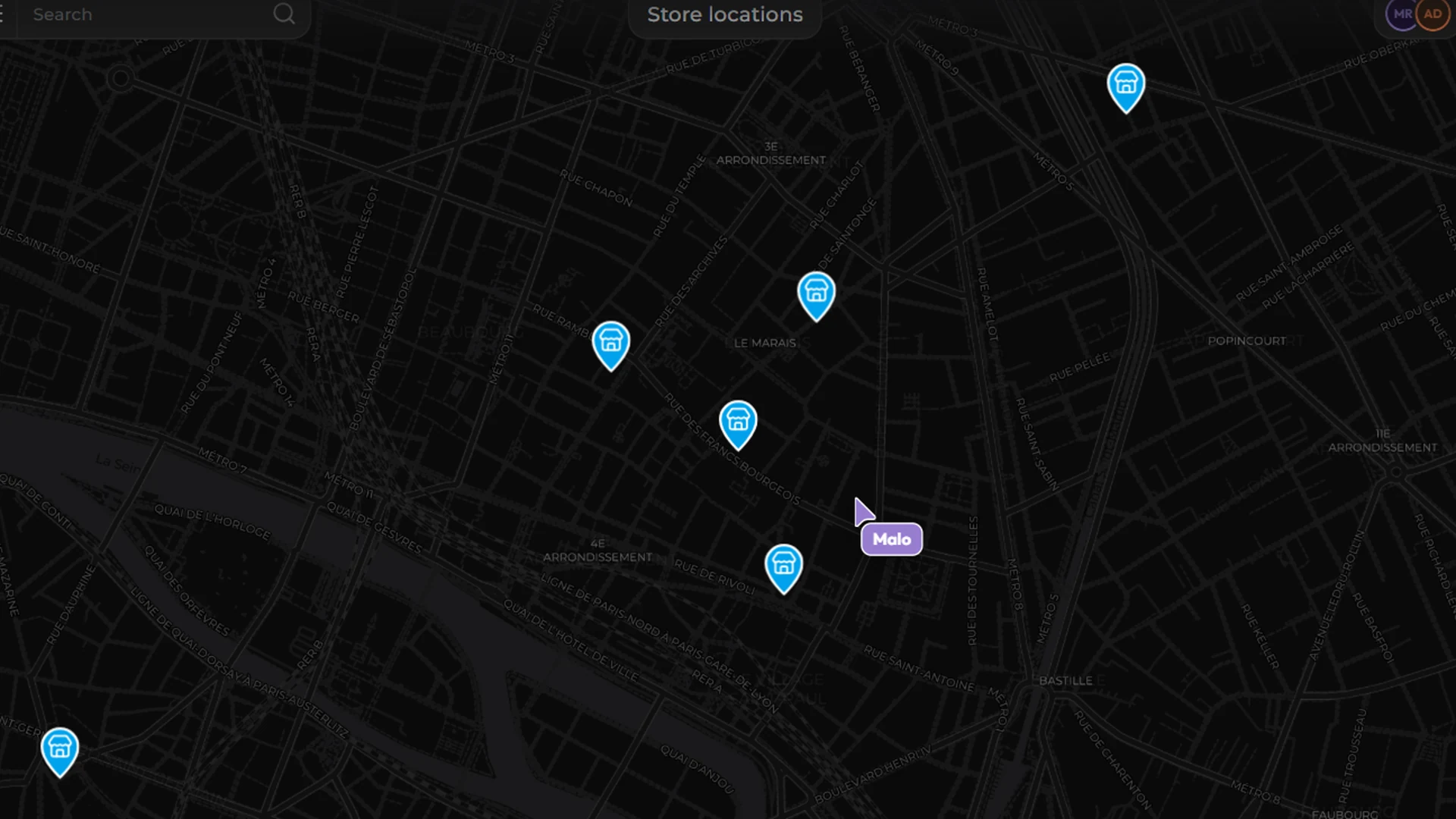
Configuration › Points of Interest:
Display mode: All, Icons, Labels or None;
Categories: choose which to show, among 16 (transport, food, shops, health, education and culture, tourism, lodging, leisure, sports, services, finance, public offices, religion, monuments, emergency, aviation).
Settings
Configuration › Settings:
For a precise startup view: position the map as you like, then Custom › Save current view.
Sharing your location
When you open a shared map, Kubme may offer to Share your location with the other people present (see Co-editing). You can Accept or Decline.
Publishing your map
A map can be published at a kubme.app address (see Domains) or embedded in your site (see Widgets).