The Notes component is a hierarchical notebook. Each note can hold sub-notes, endlessly, and is written in a rich editor.
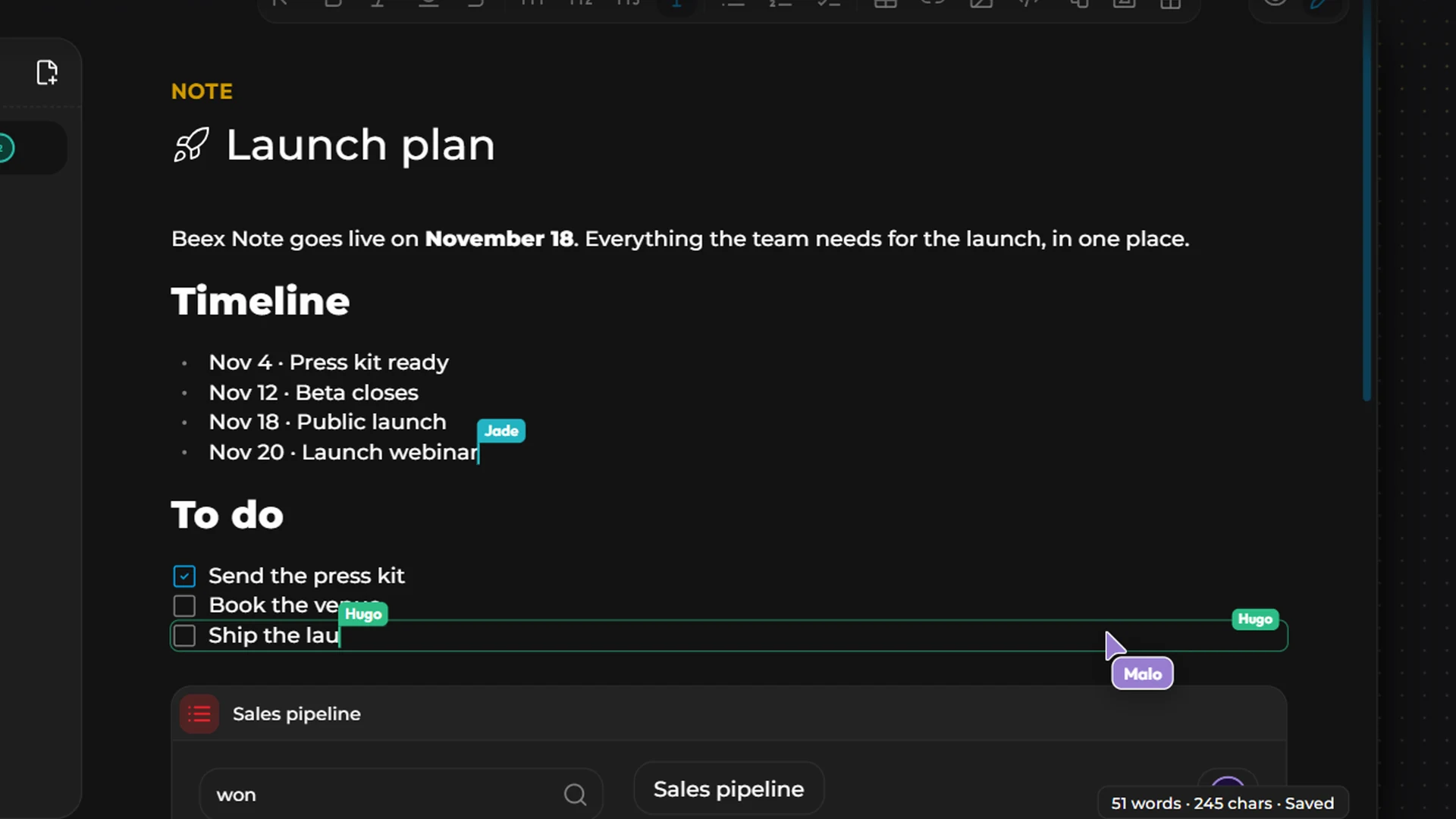
Organizing your notes
The Your notes panel, on the left, shows the tree:
New Note: at the top of the panel;
drag and drop a note to move it;
a note's menu (on hover): Add a nested note, Change icon, Rename, Delete.
Writing
Type / to insert a block:
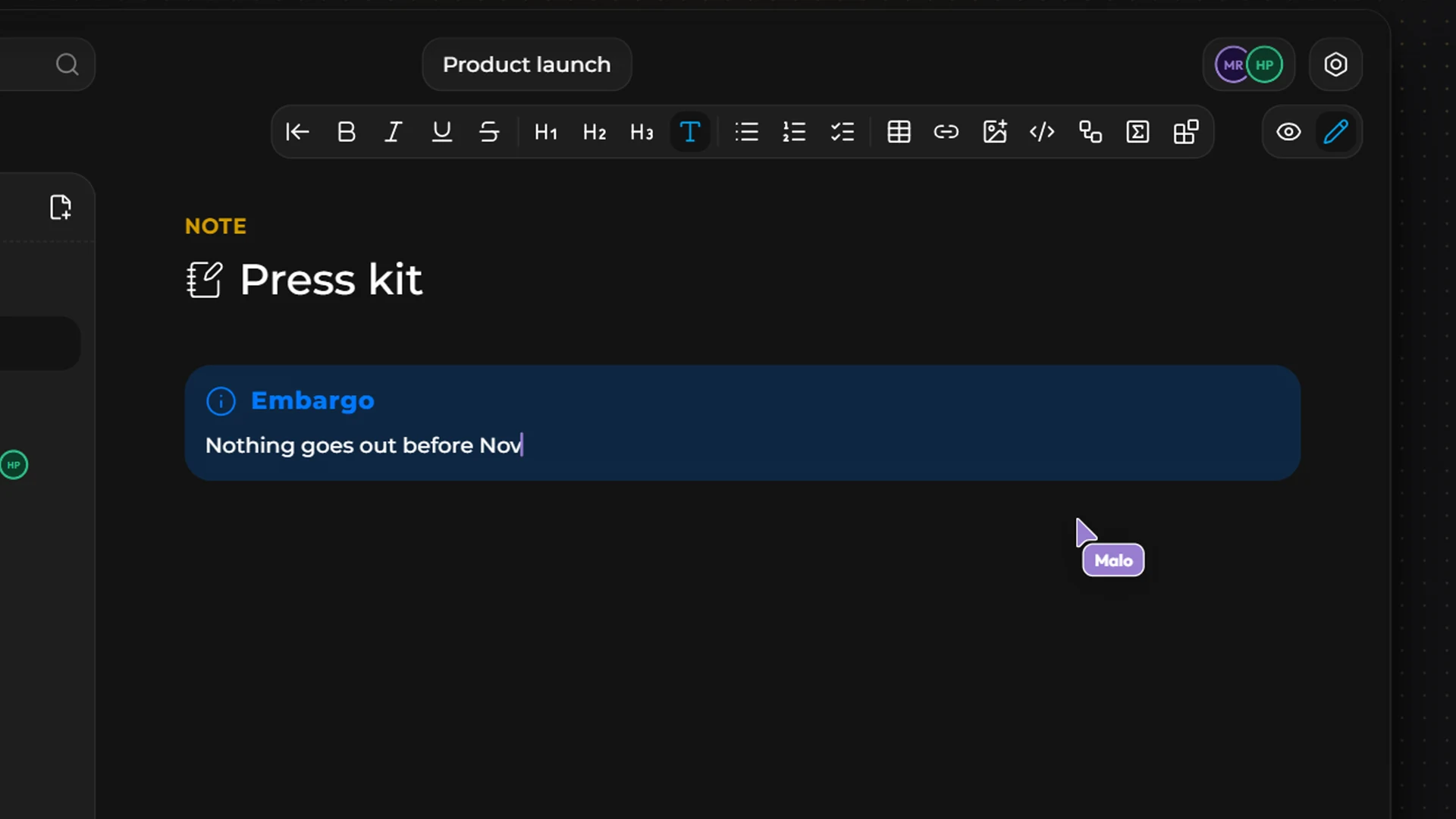
Select text to make it bold, italic, underlined or struck through. A block's menu lets you Turn into another type, Duplicate or Delete it.
Embedding a component
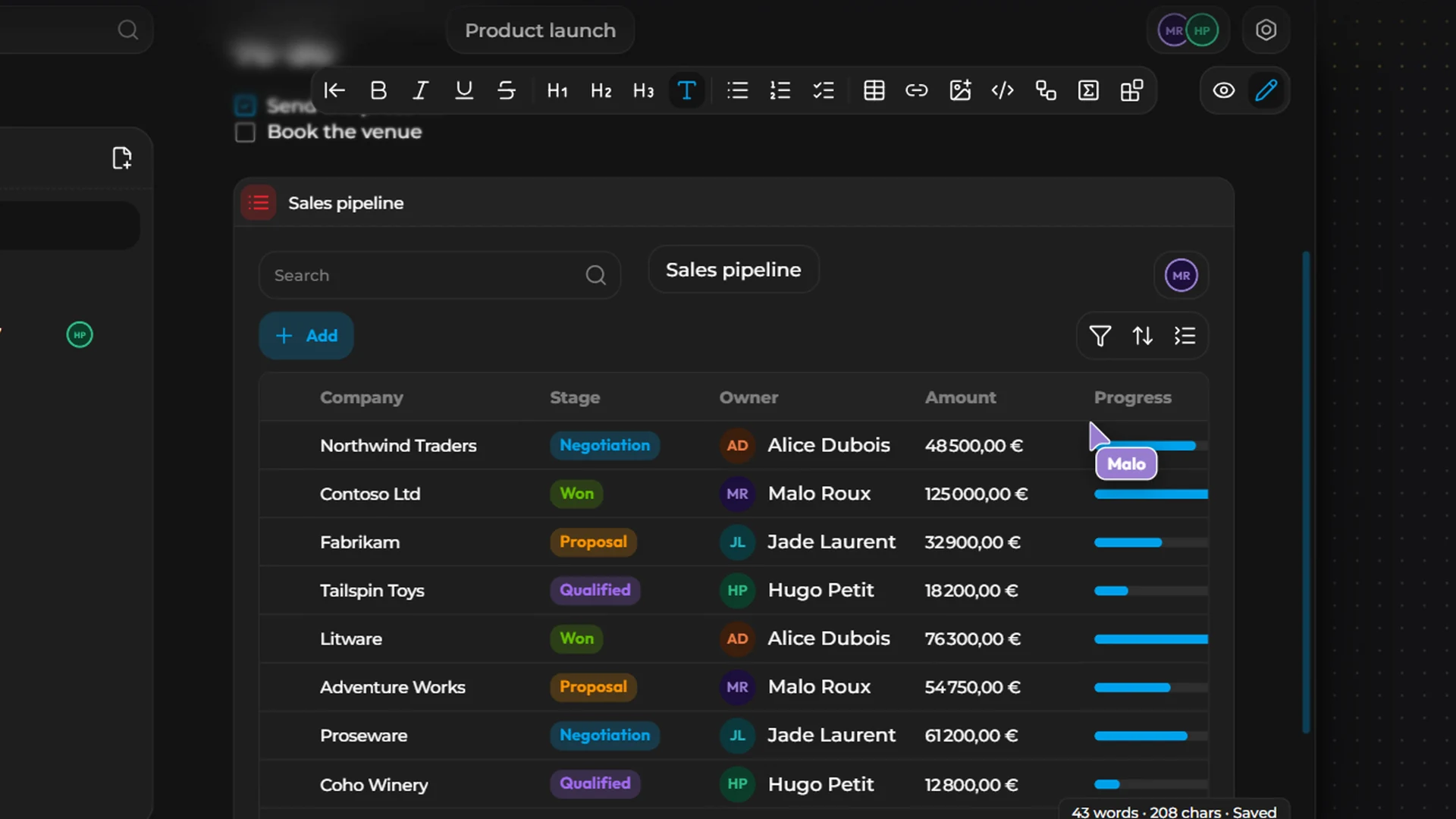
The Component block shows another Kubme component live in the note: a task list, a map, a calendar… The data stays up to date.
With Kubme AI
Ask Kubme AI: “Create a ‘Meeting notes – November 12’ page in my notes with these points, and a checklist of the actions.”
Reading
The Edit mode / Read mode toggle in the header shows the note without the editing tools. At the bottom of the page, a counter shows words and characters, and the save status (“Saved”).
Settings
Configuration › Settings: toolbar, search bar, Spell check, Show table of contents, Open the pages panel by default and Content width.
Import and export
On top of the common formats (see Overview), Notes imports Markdown (the tree is rebuilt) and exports to Markdown or PDF.
To publish your notes as a real documentation site, use the Docs component instead.